
Pro esports player
Baoer
A Chengdu AG pro who is focused in matches and softer in private, ideal for users who want a cool, attentive companion with a competitive spark.
EsportsCoolFocused
Start chatCharacter card import guide
Import SillyTavern character cards into LumiChat: JSON or PNG up to 8 MB, the exact creator buttons, field mapping, lorebooks and fixes for PNG errors.
12 min read
Quick answer
Sign in, open My chars (/app/create), click Import character card, pick a JSON or PNG card up to 8 MB, review the fields in the Advanced editor, then click Save changes. Publishing is a separate Submit for publish review step.
Featured companions
Preview a few popular companions, watch the promo video, then jump straight into chat.
Pro esports player
A Chengdu AG pro who is focused in matches and softer in private, ideal for users who want a cool, attentive companion with a competitive spark.
Osaka underground DJ
A Techno DJ from Shinsaibashi with direct energy and a strong sense of rhythm, suited to music, nightlife, and lively chat.
Ginza club queen
An elegant Tokyo Ginza club character with warm, ritual-rich replies for users who want refined emotional companionship.

Import steps and troubleshooting
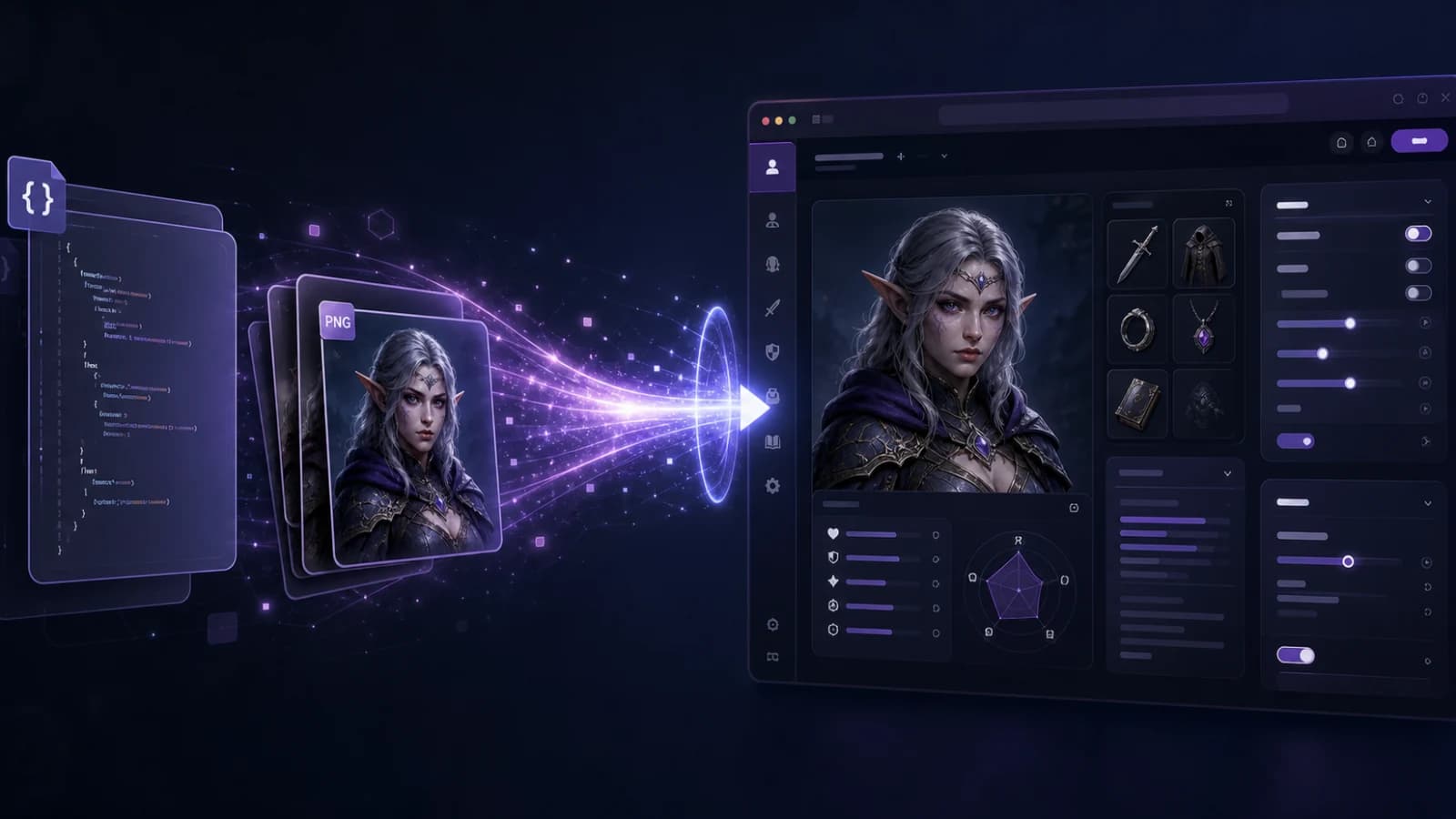
To import SillyTavern character cards into LumiChat, sign in, open My chars, click Import character card and choose one JSON or PNG card up to 8 MB; LumiChat turns it into a draft you review and save. A normal portrait renamed to .png is not a character card.
Updated November 5, 2026: steps and button names re-checked against the current LumiChat creator.
Sign in, open My chars (/app/create), click Import character card, pick a JSON or PNG card up to 8 MB, review the fields in the Advanced editor, then click Save changes. Publishing is a separate Submit for publish review step.
The LumiChat creator accepts SillyTavern character cards as .json files or as real .png files with the card embedded in the image. The card file limit is 8 MB. JSON is read as card data; a PNG must carry the card in a ccv3 or chara text chunk, and LumiChat also uses that PNG as the character’s avatar.
A separate Import lorebook button accepts a World Book JSON file up to 4 MB. LumiChat does not import chat histories, and it cannot pull characters straight from a SillyTavern install or another platform’s account: you upload the card file yourself. For a general primer on the format, see our AI character cards guide.
SillyTavern’s documentation calls a character card a collection of prompts that sets how the model behaves. Its Characters page lists Import Character (load a character from a file) and External Import (from a URL) as the two ways to bring characters in. The character design guide adds that the character name is the only required field, and that the first message is the part the model is most likely to copy for style and length.
The SillyTavern FAQ explains the most common import failure: a PNG that is only an image because a program or file manager stripped the embedded definitions, or a WebP file saved with a .png name. Its World Info guide notes that a lorebook bound to a character is embedded in the card when the character is exported, so a card may already carry its own lorebook.
Keep the original file unchanged. Only import a card you created or have permission to use, and read any license or creator note attached to it. A downloadable community card is not automatically permission to republish the character publicly. If you collect cards from Chub, our Chub AI character cards guide covers downloading the right file.
For JSON, open a copy in a text editor and confirm it is structured card data rather than an HTML page from a failed download. For PNG, use the raw file as it was shared, not a screenshot, a re-saved copy or a WebP renamed to .png.
Sign in to LumiChat, then open My chars in the app navigation or go to /app/create. The page is titled Create & manage characters. Signed-out visitors only see the message “Sign in to create a character”, so the import buttons appear after you sign in.
In Guided creation, the first step (Look and identity) shows Import character card next to Upload avatar and Import lorebook. In the Advanced editor, the same button sits in the Quick start panel with the hint “Supports JSON / PNG character cards”. Choose one .json or .png file.
Import one card at a time. The draft is created on the server as soon as the import succeeds, so clicking again with the same file only makes a duplicate.
On success LumiChat shows “Imported. Review the fields before saving.” and opens the card in the Advanced editor. If the file cannot be read, whether the PNG has no card data, the file is over 8 MB or the card has no name, you see one generic message: “This file could not be parsed”.
Imports are also security checked. If a field contains instructions that try to override platform rules, call tools or request internal prompts, LumiChat reports a possible prompt injection; remove those lines from a copy of the card and import again.
Check Character name, Tags (comma separated), Public description, Personality and voice, Scenario and relationship, Dialogue examples, First message and the avatar. Read line breaks and placeholders such as {{char}} and {{user}} in context, and shorten an overlong first message before you test.
Public description shows the first part of the card description, while the full imported description is kept for the persona. If you edit Public description, LumiChat saves your edited text as the description as well, replacing the longer imported version. For editing habits that keep a character stable, see the AI character editor guide.
If the card had an embedded lorebook, it comes in with the card. To use a separate World Book file instead, click Import lorebook and pick a JSON file up to 4 MB; the notice “Lorebook loaded” means it is ready in the editor and replaces the lorebook currently loaded there.
The lorebook is attached to the character only when you click Save changes. Entries without content are dropped, and a book with no valid entries is rejected. If you export lore from Janitor AI first, read the Janitor AI lorebook export guide.
Saving makes the character playable privately in your account. Start a short test chat with three prompts: one that should show the persona, one that should trigger the scenario and one exact lorebook keyword. Then correct one fact and continue for several turns.
Submit for publish review is a separate button. Use it only after the test, and after you remove private names, copied creator text and art you do not have rights to. If you would rather build a character from scratch, follow the AI chat character creation guide.
name becomes Character name; description fills Public description and the persona description; personality becomes Personality and voice; scenario becomes Scenario and relationship; mes_example becomes Dialogue examples; first_mes becomes First message; tags become tags; character_book becomes the lorebook. Card Spec V2, V3 and flat V1 JSON are recognized.
Some card fields are not carried over. LumiChat ignores the card’s system_prompt and post_history_instructions, so platform rules always come first, and alternate greetings and creator notes are not copied into the draft. Put anything important from those fields into the visible fields yourself.
A visible portrait can contain no character definition at all. LumiChat reads PNG text chunks named ccv3 or chara; without either, or when the file is really a WebP with a .png name, the import fails with “This file could not be parsed”.
Get the original file again from the person or site that shared it, or export it again from SillyTavern. Do not try to fix it by renaming. If only the picture survived, import the JSON version of the card and use Upload avatar for the portrait.
World Info is keyword-triggered context: an entry enters the prompt when its keys appear, and unrelated lore stays out. Use it for conditional facts about places, items and side characters instead of pasting everything into the permanent persona.
Before import, remove duplicates, narrow broad keys and shorten entries to facts the model must know. Words like “the”, “city” or a common pronoun trigger constantly; a place name, alias or distinctive object is safer.
These links are primary documentation or the official product help center. Limits and editor labels can change, so verify the current screen before paying or migrating data.
Use a small, non-sensitive test character first. Compare the imported fields and one controlled conversation before moving a full library.
Open LumiChat Character Creator · Browse LumiChat characters · Read the privacy policy
Sign in, open My chars (/app/create), click Import character card, choose one JSON or PNG card up to 8 MB, review the fields, then click Save changes.
The PNG has no embedded card data (it was stripped or is a plain image), it is a WebP renamed to .png, it is over 8 MB, or the card has no name. Use the original file or import the JSON version.
No. Import creates a draft; saving makes it playable privately. Public listing needs a separate Submit for publish review.
Yes. A lorebook embedded in the card comes in with it, or use Import lorebook for a World Book JSON up to 4 MB, then click Save changes.
No. LumiChat imports character card files and lorebook JSON only. Chat histories are not imported, and characters cannot be pulled directly from other platforms.
No. Confirm the creator’s license and permission before you submit it for public review.

Continue in LumiChat
Browse active characters, choose a personality that fits, and start chatting in seconds.
Continue the conversation naturally
World memory guide
A Janitor AI lorebook is conditional world knowledge: short keyed entries inject one fact when a precise keyword appears, so start with five entries and test each key before scaling.
Portable AI character-card workflow
A practical Chub card workflow from search and creator checks to format choice, private import and a repeatable chat test.
Character card field guide
A format-first reference for knowing what is inside a character card before you import, edit or share it.
Tavern AI chat guide
Choose between configurable Tavern-style character cards and a managed browser-based character chat route.